
Understand approved payroll bookkeeping
View an approved payroll journal transaction
Understand approved payroll bookkeeping
Every time you approve a payroll, Wave automatically creates a journal transaction. This journal transaction records the total cost of the approved payroll run, both as payroll expense and as an amount owing.
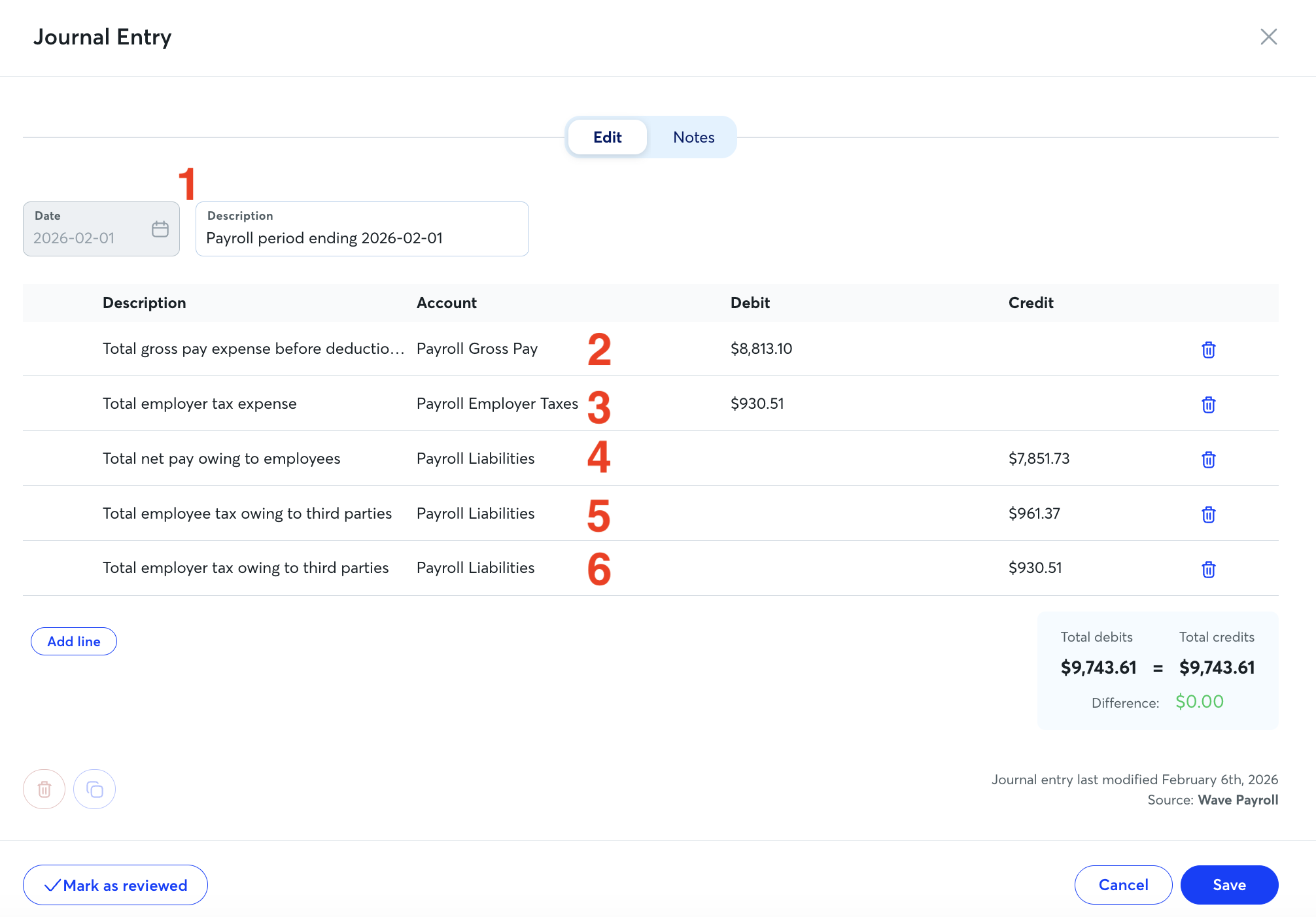
In an approved payroll journal entry, you can find the:
- Date: The date represents the last day of the approved payroll period.
- Total gross pay expense before deductions: This represents the total pay earned by all salaried and hourly employees. This total is recorded to the expense category called Payroll Gross Pay, and is included on your Profit & Loss report.
- Total employer tax expense: This represents the amount of payroll taxes that you owe as the employer. It is included on your Profit & Loss report under the expense account Payroll Employer Taxes.
- Total net pay owing to employees: This represents the amount due to your employees after employee withheld taxes. This amount is categorized on your Account Transactions report under Payroll Liabilities.
- Total employee tax owing to third parties: This represents the amount of employee payroll taxes withheld from paychecks that is owed to the government. This amount is categorized on your Account Transactions report under Payroll Liabilities.
- Total employer tax owing to third parties: This represents the amount of employer payroll taxes that is owed to the government for this payroll period. This amount is categorized on your Account Transactions report under Payroll Liabilities.
If you have added benefits or deductions to an approved payroll, the amounts will appear in your approved payroll transaction as an uncategorized line item. You must manually categorize these into the correct income or expense accounts.
To keep your payroll accounting accurate, you can only edit the description, uncategorized line items, and notes of an approved payroll transaction.
Once an uncategorized line item is categorized, you cannot change the category.
An approved payroll journal transaction cannot be deleted. However, if you delete an approved payroll, a matching journal transaction will be created with the credits and debits reversed to cancel out the original approved payroll journal transaction.
If your payroll includes Shareholder Medical Premiums (SMP), these are included in the Total gross pay line item of your approved payroll journal entry. When you later pay the SMP, categorize the withdrawal transaction to Payroll Liabilities to clear the balance.
View an approved payroll journal transaction
To view your approved payroll journal transactions from a desktop:
- In the left-side menu, click Accounting > Transactions.
- Click Filter, then for the Type, select Journal.
- Click Apply.
- In the Search transactions box, type payroll to view all payroll journal transactions.
To view approved payroll journal transactions from the Wave mobile app, in the bottom menu, tap Accounting > Transactions. Scroll through your transactions and look for journal entries with the description Payroll.
Transactions are available on Wave’s mobile app with a Pro Plan subscription.