
Common reasons you need to edit or delete an approved payroll
Adjusting a payroll that cannot be deleted
Edit or delete an approved payroll
Re-approve an edited or deleted payroll
Common reasons you need to edit or delete an approved payroll
Common reasons that you may need to edit or delete an approved payroll include:
- A deduction or benefit is missing, or the wrong amount was entered
- The employee's wages are incorrect
- The pay date is wrong
- The funding bank account details are incorrect, or the account is disabled
- An employee or independent contractor is missing, or has been added by mistake
Adjusting a payroll that cannot be deleted
If you need to make adjustments to a payroll that has already been paid out by direct deposit, or you have approved a payroll after the one you want to edit, you can't edit or delete that payroll. Instead, you can:
- Include any additional payments or deductions in the next payroll period
- If an employee or independent contractor was left out or added by mistake, their status changed or they were on leave, or they were paid the wrong amount, contact our Support Team to make adjustments to the necessary pay periods. Open Mave, Wave’s automated chatbot, type human support edit pay period, and include the date of the pay period in your message to the Support Team.
Edit or delete an approved payroll
To edit a recently approved payroll, delete the payroll, make your changes, and then approve it again. You can delete an approved payroll if it has not started processing the direct deposit funds.
To check the status of the payroll, open the Payroll > Payroll Transactions page, and click on the payroll period you want to edit or delete. The payroll will have the status Scheduled if the funds haven't begun processing:
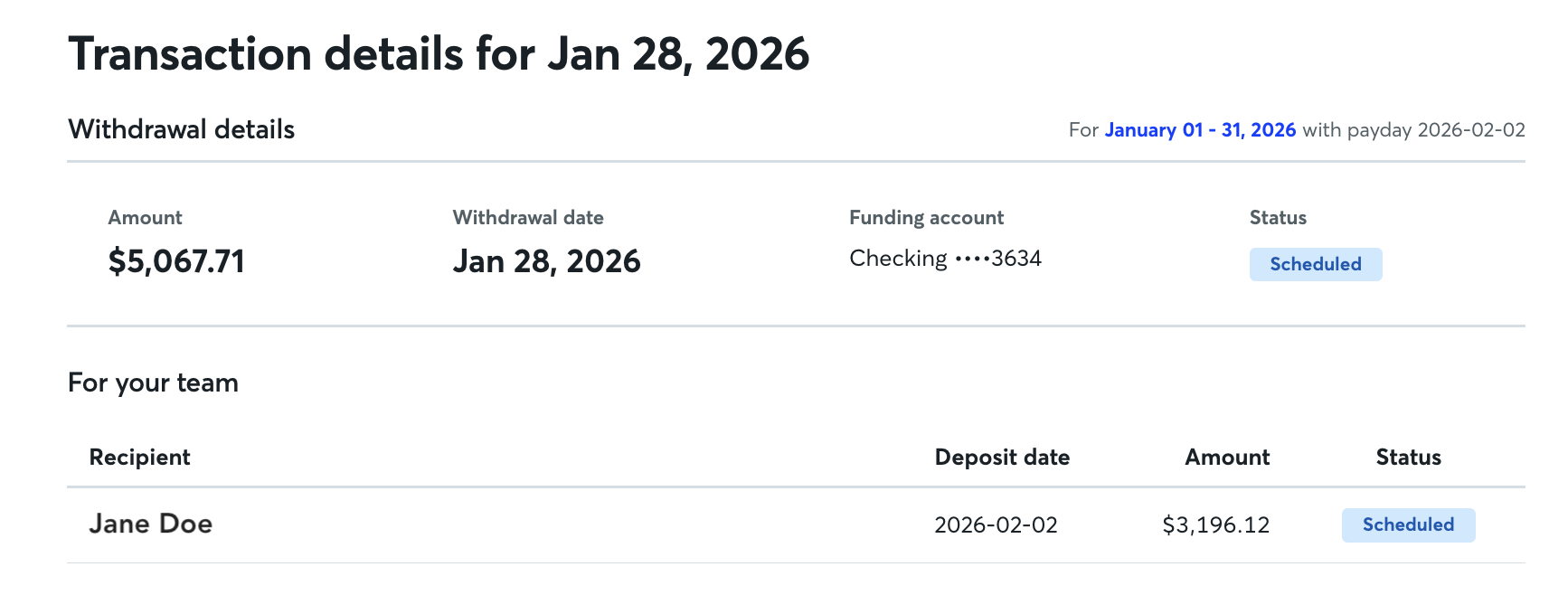
If you pay your employees by cheque and need to edit or delete an older payroll, delete the newer payrolls first, starting with the most recent one.
To delete an approved payroll:
- Log in at waveapps.com.
- On the left-side menu, click Payroll > Payroll Dashboard or Run Payroll.
- Click Approved Payrolls, then select the most recent pay period from the list.
- Click Delete, and then click Delete again to confirm.
Re-approve an edited or deleted payroll
To re-approve a payroll after you edit or delete it, return to the Payroll Dashboard or Run Payroll page and select the pay period you want to run. Update the pay date if the previous direct deposit deadline has passed.
Ensure you select the pay period you want to run before approving any future payrolls. Once you approve a future payroll, you can't go back and approve a payroll dated before it. This ensures no period is skipped and your records stay accurate.
Learn how to change a pay period for US businesses or change a pay period for Canada.