
When you send an invoice through Wave, your customer receives an email with the subject line "Invoice # from [business name]." The email provides a summary of the amount due and the due date. If online payments are enabled, the email includes a Review & Pay button that allows them to view and pay the invoice.
You cannot manually process a bank payment. Customers must complete the payments through the invoice link sent.
To make a payment, your customer should:
- Click the Review & Pay button. Customers are then taken to the invoice on a new page.
- If they want to edit the amount, select Enter custom amount and enter the amount. Otherwise, select Pay in full.
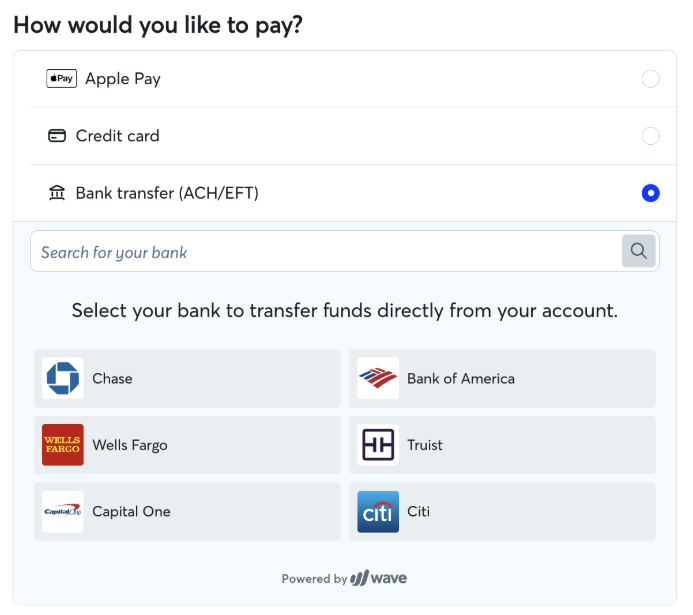
- Choose the payment method from the methods that have been turned on for that invoice: Apple Pay, Credit card or Bank transfer (ACH/EFT).
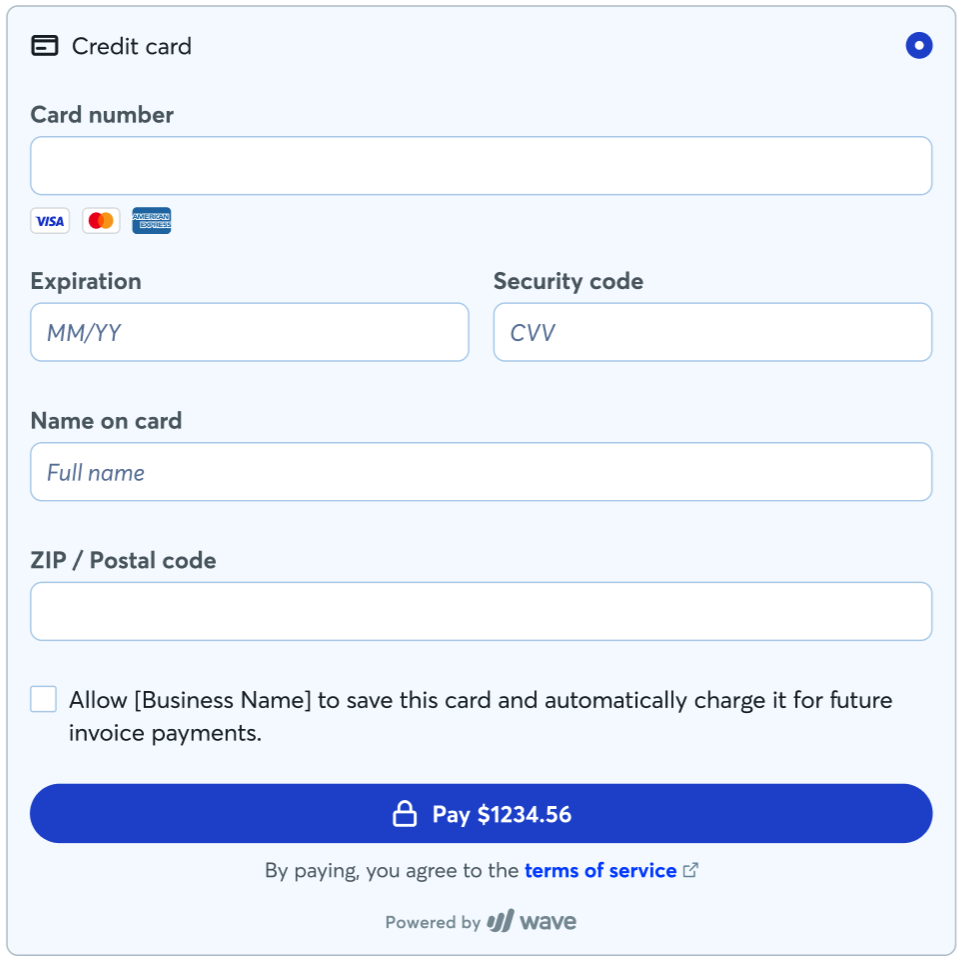
- For credit card payments, customers should enter their credit card information on the secure page. Customers can also select the checkbox to allow you to save their credit card information and use it for future invoice payments.
-
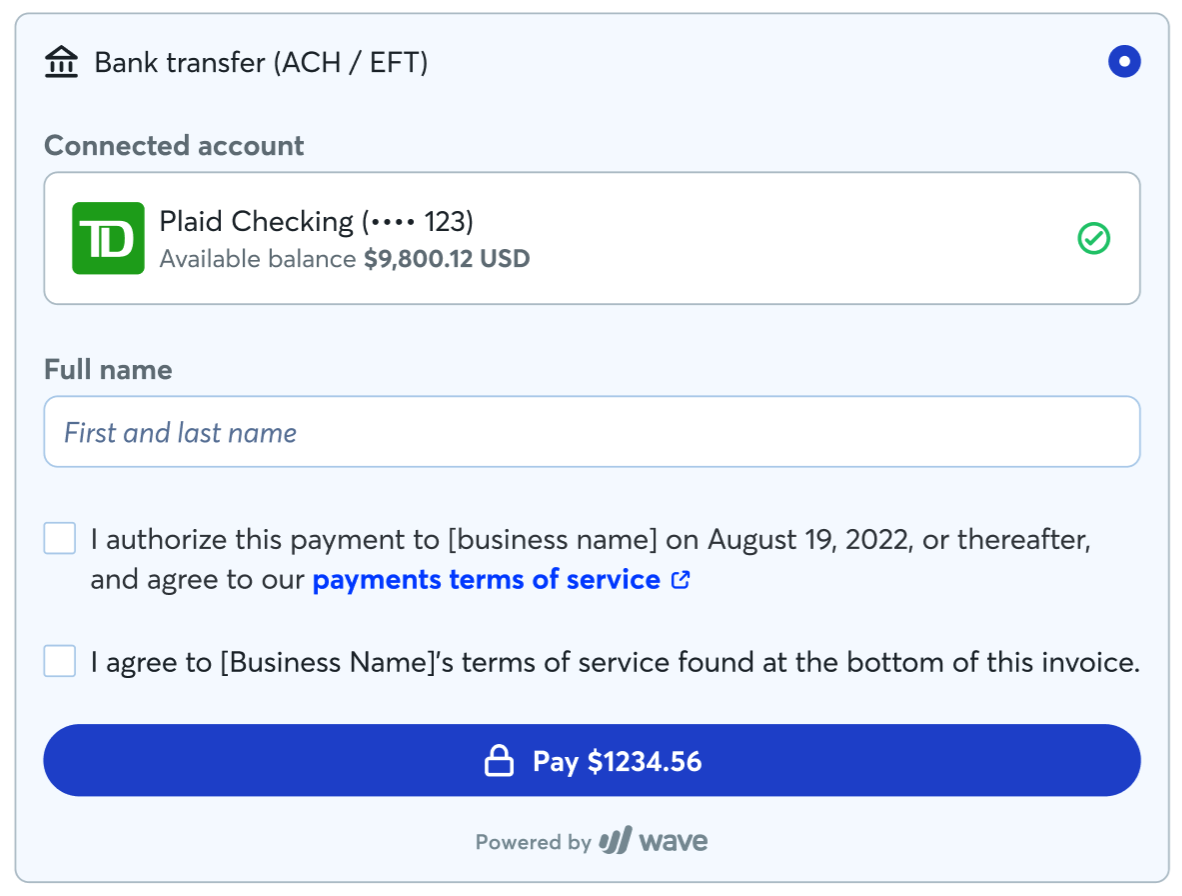
For bank transfers, customers should search their bank’s name and select it. They'll be directed to a secure page where they can log in to their bank’s online banking portal.
To continue with their payment, customers should select the checkbox(es) to authorize the payment and agree to your terms of service if necessary. Learn how you can add, edit, or delete a payment’s Terms of Service on an invoice.
- Click the Pay button.
If there is an error when processing an invoice payment through Wave, our Support Team can help. Open Mave, Wave’s automated chatbot, and contact a Support Agent. Provide the invoice number, payment amount, and the error message.